Skip to content
Marketplace for Architectural Resources
by Well Rested Architect

Illustrator Pattern Library - Huge Architectural Materials Mega-Pack (17 Sets in 1)

$69.90
Select License

Illustrator Pattern Library - Huge Architectural Materials Multi-Pack

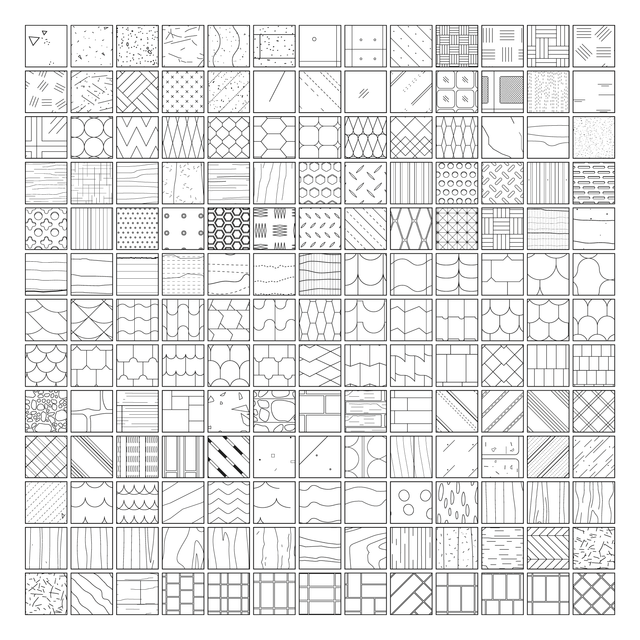
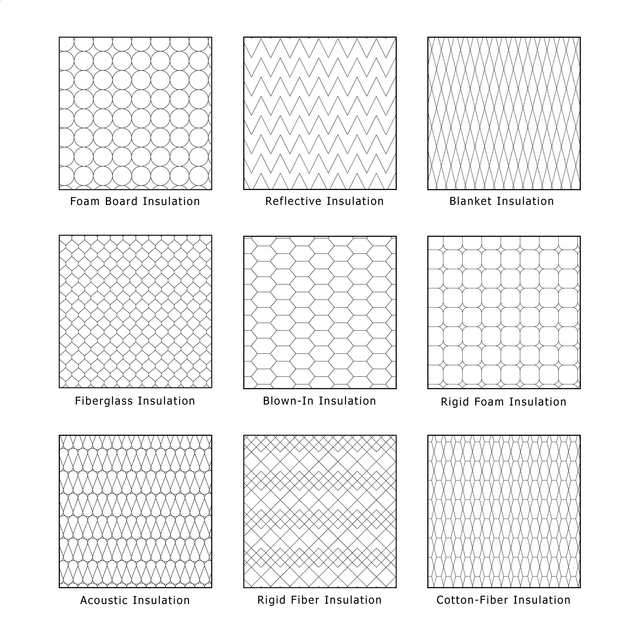
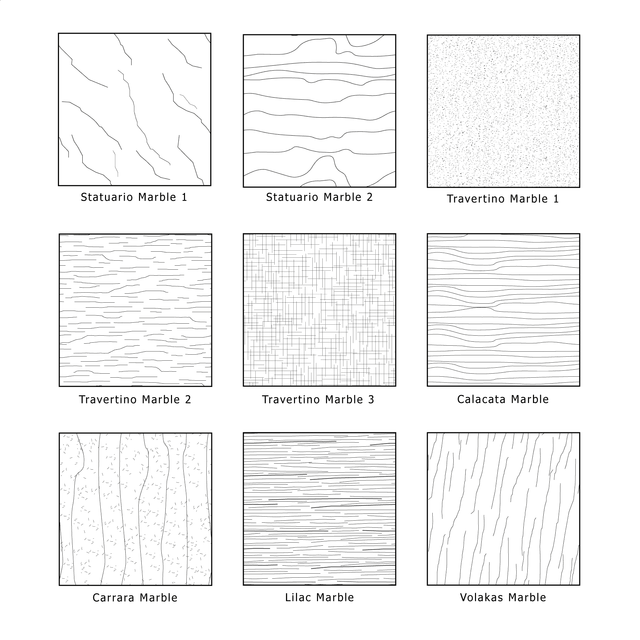
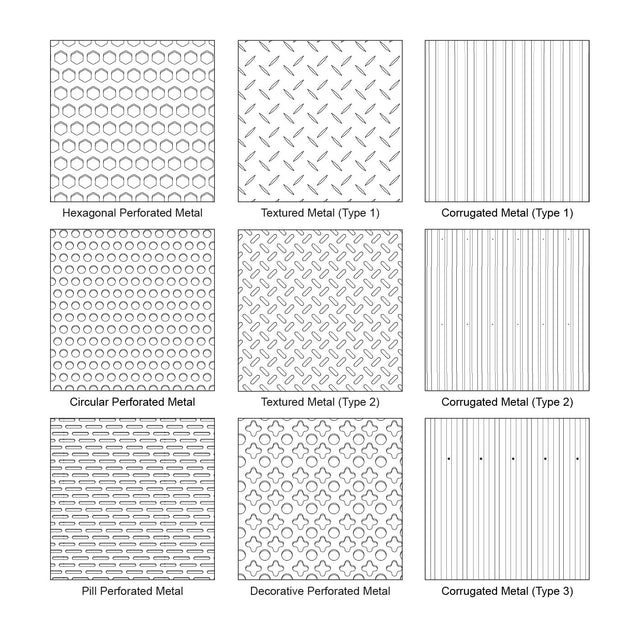
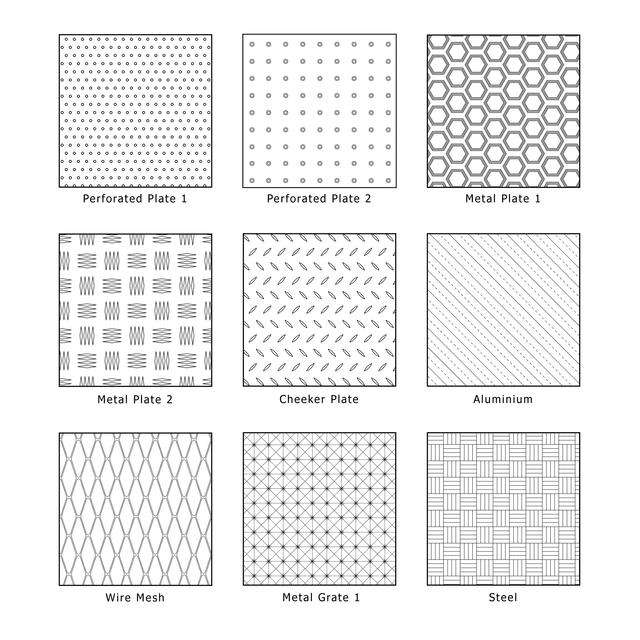
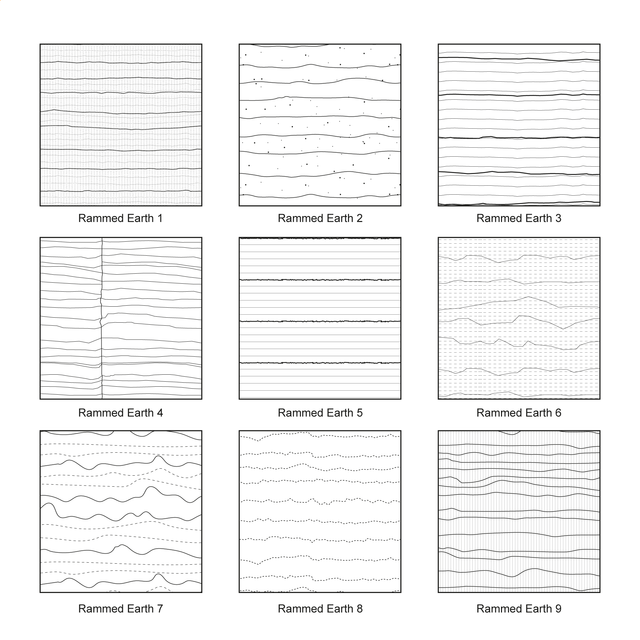
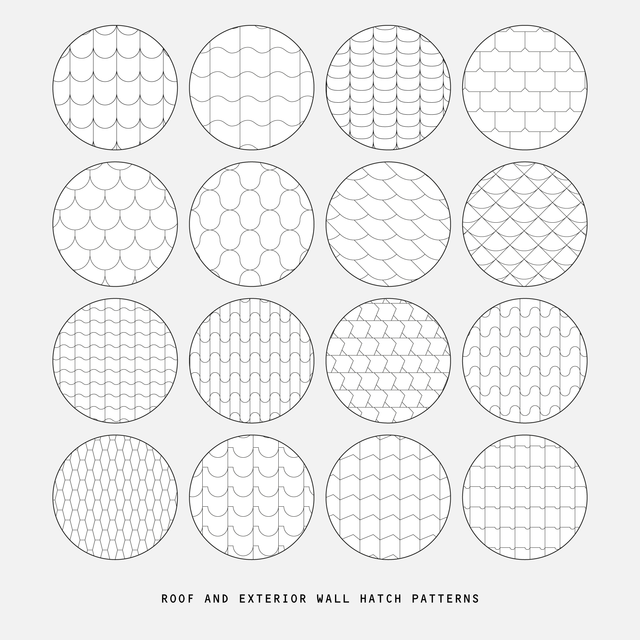
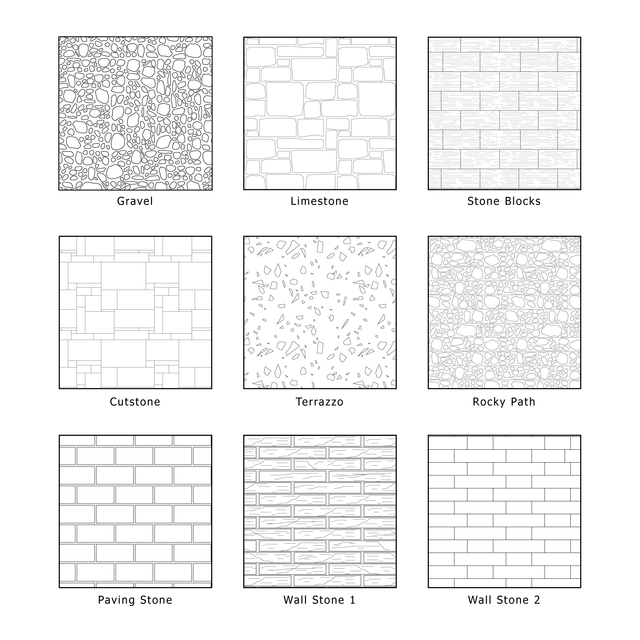
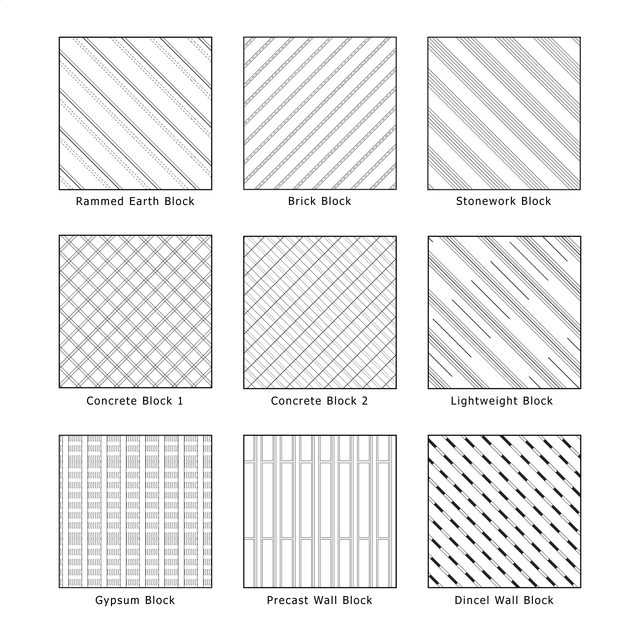
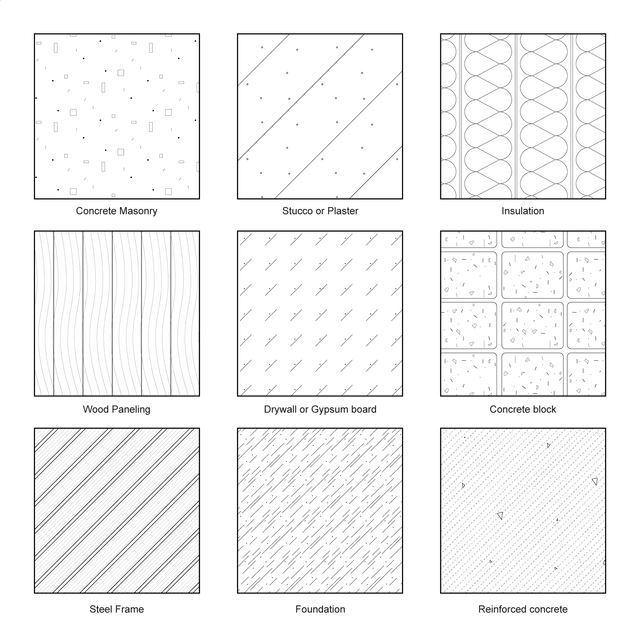
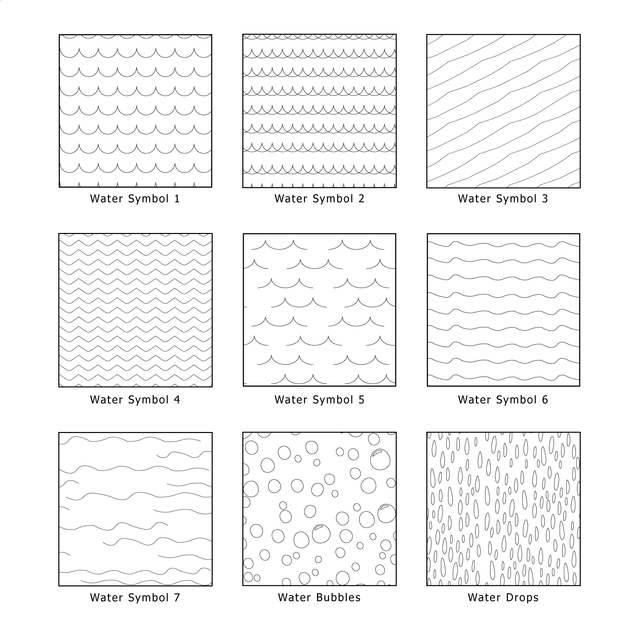
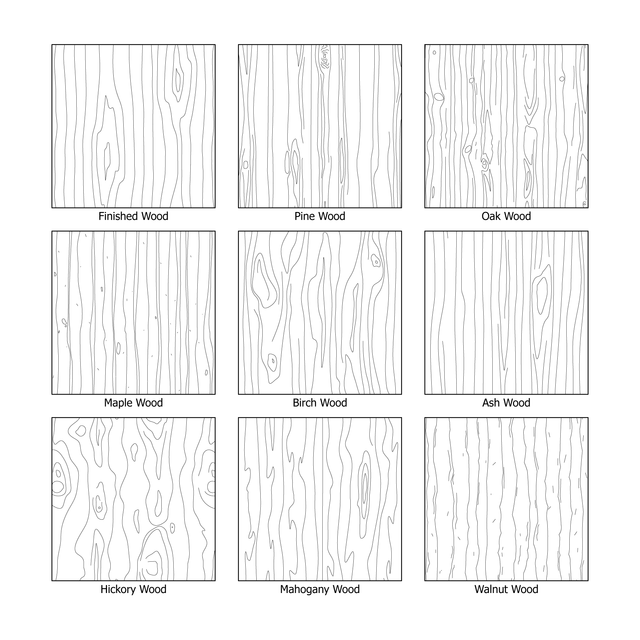
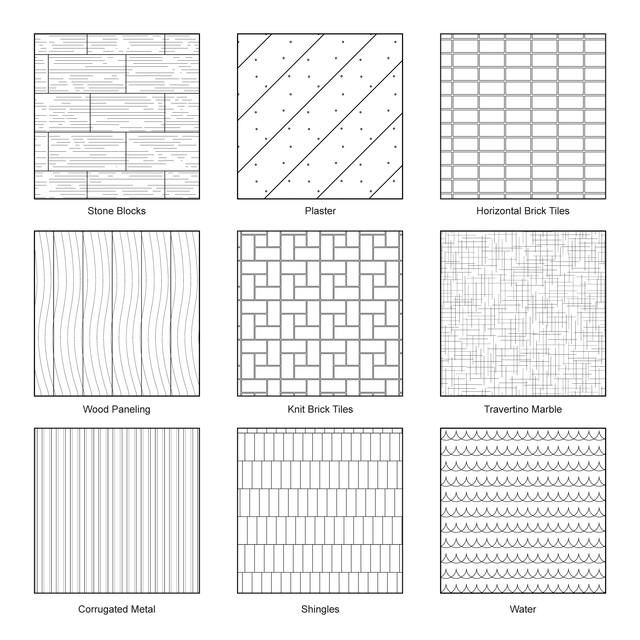
Description: A huge Adobe Illustrator architectural pattern library with 170+ editable vector material patterns for architectural drawings, technical documents, diagrams, and post-digital collages. The multi-pack includes clean Illustrator swatches for rammed earth, roof and wall hatches, metal, stone, wood, water, shingles, earth and soil, glass, concrete, brick, tile, marble, insulation, and wall cross-section patterns. These patterns work like architectural hatches and can be used to define materials in plans, sections, elevations, details, axonometric drawings, isometric drawings, schemes, and presentation visuals.

This set is designed for architects, students, interior designers, landscape designers, urban designers, visualizers, competition teams, and post-digital collage creators. It is useful for construction details, material studies, architectural diagrams, façade drawings, floor plans, roof plans, wall sections, presentation boards, competition boards, and visual documents where clear material definition is needed.

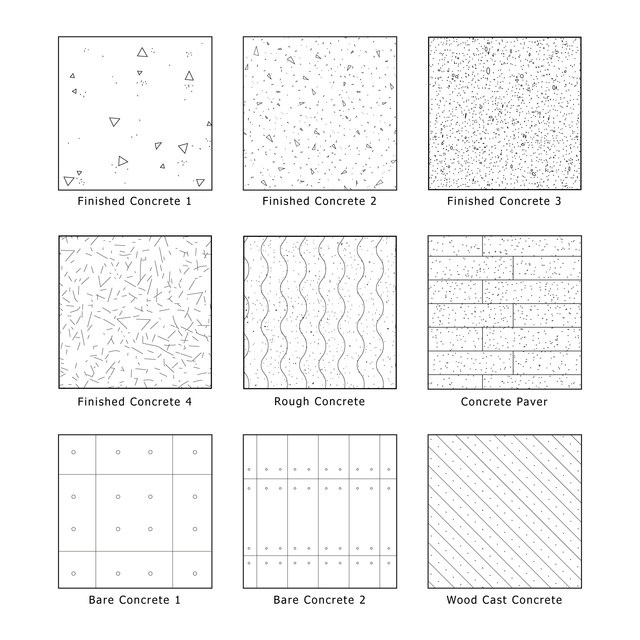
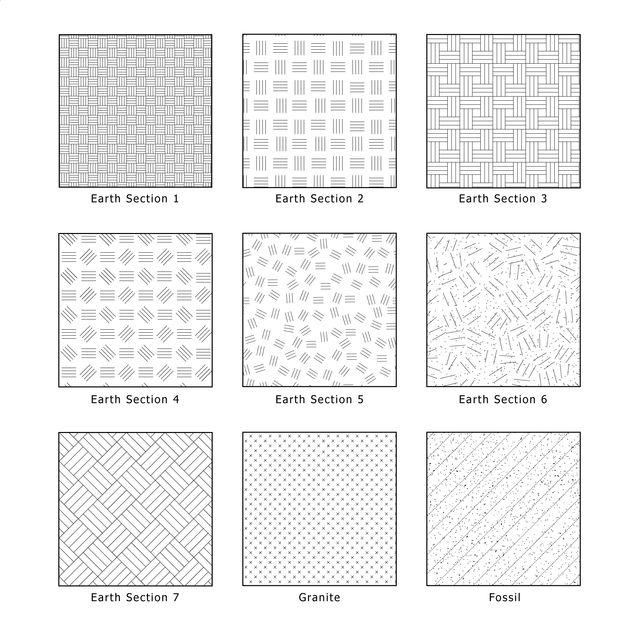
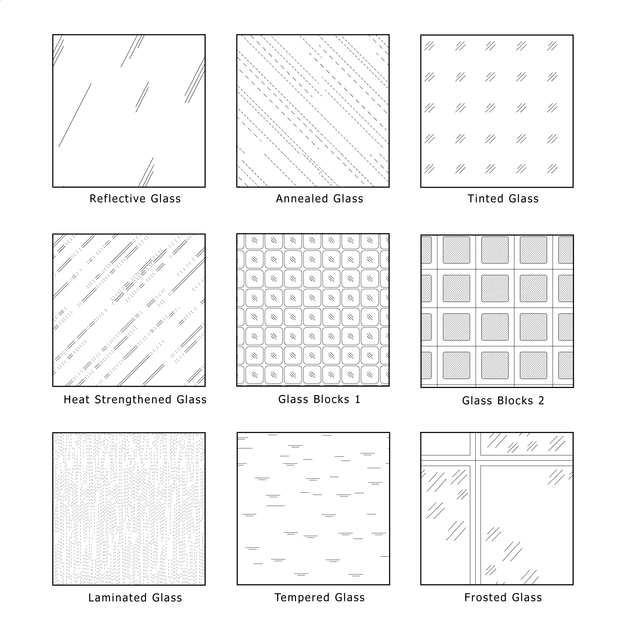
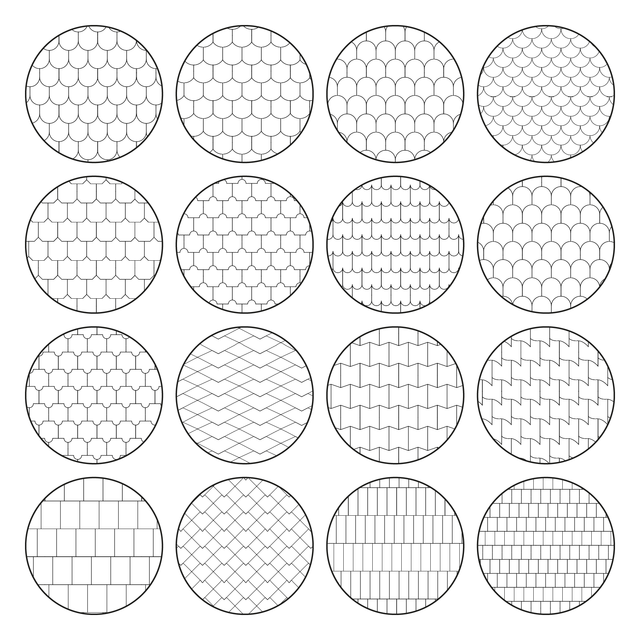
Included Elements: rammed earth patterns, roof hatches, wall hatches, metal patterns, stone patterns, wood patterns, water patterns, shingles, earth patterns, soil patterns, glass patterns, concrete patterns, brick patterns, tile patterns, marble patterns, insulation patterns, wall cross-section patterns, building block patterns, architectural hatches, Illustrator swatches, editable vector patterns

This multi pack includes 17 smaller sets:

1. Illustrator Pattern Library - Rammed Earth Patterns
2. Illustrator Pattern Library - Roof and Wall Hatch Patterns
3. Illustrator Pattern Library - Metal Patterns
4. Illustrator Pattern Library - Metal Patterns 2
5. Illustrator Pattern Library - Stone Patterns
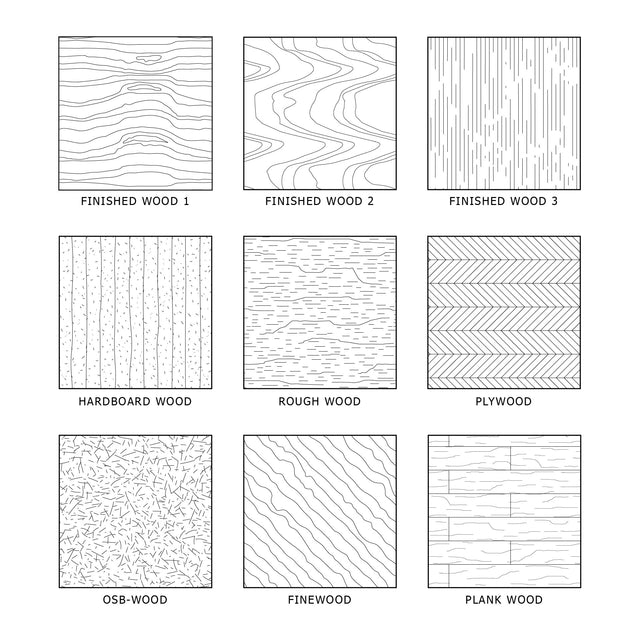
6. Illustrator Pattern Library - Wooden Patterns
7. Illustrator Pattern Library - Wooden Patterns 2
8. Illustrator Pattern Library - Water Patterns
9. Illustrator Pattern Library - Shingles
10. Illustrator Pattern Library - Earth and Soil Patterns
11. Illustrator Pattern Library - Glass Patterns
12. Illustrator Pattern Library - Concrete Patterns
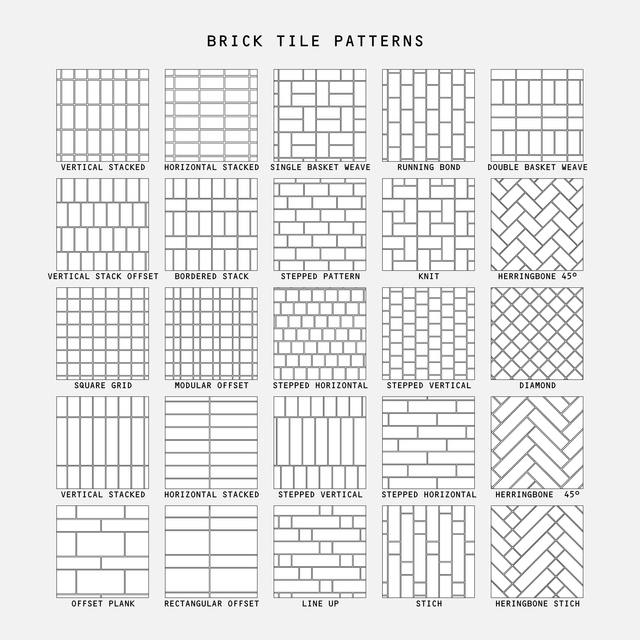
13. Illustrator Pattern Library - Brick Tile Patterns
14. Illustrator Pattern Library - Marble Patterns
15. Illustrator Pattern Library - Insulation Patterns
16. Illustrator Pattern Library - Wall Cross Section Patterns (building blocks)
17. Illustrator Pattern Library - Wall Cross Section Patterns 2

Use Cases:
architectural drawings, technical details, construction documents, plans, sections, elevations, façade studies, roof plans, wall sections, material diagrams, axonometric drawings, isometric drawings, post-digital collages, presentation boards, competition boards, concept diagrams, architectural visualization workflows

Why This Set:
170+ editable vector architectural patterns
Huge Illustrator material pattern library
Works like AutoCAD hatches inside Adobe Illustrator
Useful for plans, sections, elevations, and details
Clean linework for architectural drawings
Editable AI swatches for fast material definition
Great for technical documents and visual presentations
Suitable for post-digital collage and diagram workflows
Includes a wide range of architectural materials in one pack

Installation in Adobe Illustrator:
Window menu > Swatches > In the Swatches window, click the top right corner button > Open Swatch Library > Other Library > Choose the downloaded file > Click Open.

The pattern library will appear as a separate swatch group. Select the object you want to fill, then click the pattern swatch to apply it.

How to Resize a Pattern in Illustrator:
Select the object with the pattern applied. Go to Object > Transform > Scale. In the Scale window, adjust the percentage value. Keep Uniform selected to maintain proportions. Check Preview to see the change in real time, then click OK.

How to Resize a Pattern in Illustrator (more detailed way):

  1. Open your document in Adobe Illustrator and select the object or shape that has the pattern applied to it.

  2. In the top menu, go to "Object" and then select "Transform" and "Scale" from the dropdown menu. Alternatively, you can use the shortcut key "S" to access the Scale tool.

  3. The Scale dialog box will appear, showing options to adjust the scaling of the selected object.

  4. To maintain the pattern's proportions while resizing, make sure the "Uniform" option is selected. If you want to adjust the width and height independently, you can uncheck the "Uniform" option.

  5. Enter the desired percentage or value in the "Scale" fields. Increasing the value will make the pattern larger, while decreasing it will make it smaller.

  6. You can also use the reference point locator to specify the anchor point for scaling. By default, it is set to the center. You can click on any of the nine reference points to choose a different anchor point.

  7. Preview the changes in real-time by checking the "Preview" box in the Scale dialog box.

  8. Once you are satisfied with the desired size, click the "OK" button to apply the changes.

File Format:
Adobe Illustrator .AI + Adobe Illustrator Swatch File .AI.

Keywords:
Illustrator Pattern Library, architectural patterns, architectural hatches, Illustrator hatches, AI patterns, vector patterns, editable vector patterns, architecture swatches, Illustrator swatches, material patterns, architectural materials, rammed earth patterns, roof hatch patterns, wall hatch patterns, metal patterns, stone patterns, wood patterns, water patterns, shingles patterns, earth patterns, soil patterns, glass patterns, concrete patterns, brick patterns, tile patterns, marble patterns, insulation patterns, wall section patterns, building block patterns, architecture details, architectural drawings, plans, sections, elevations, axonometric drawings, isometric drawings, post-digital collage, architectural visualization, architecture presentation boards

Free Products
Free products can be used in any type of use - both academic and commercial. When using a set, a pack or part of it, you are required to give full credit to Studio Alternativi (with an active link for online versions) and to the product's creator.

When a product is used in a project that is published on social media, you are required to give full credit to Studio Alternativi (with an active tag to Studio Alternativi’s profile).

Educational (Academic) Use
When using a product tagged with “Educational Use” you are allowed to use it for academic purposes only. Giving credit to Studio Alternativi is much appreciated.

Commercial Use
Once bought, you are free to use the product without giving attribution.

What is strictly not allowed to do (in all cases)?
Products can’t be sold without being part of a bigger artwork like a drawing, collage, rendering, poster or any other work combining Studio Alternativi’s digital products with other graphic or digital elements.
Also, you are not allowed to use products from Studio Alternativi in similar or any competing services.

RAR / ZIP Folders
Please use WINRAR - a free software to open the compressed folder.

AI Vector Files
Please use Adobe Illustrator to open the files

ABR (Photoshop Brushes)
1. Open Adobe Photoshop
2. Open the Brushes Panel: Window > Brushes
3. Select Import Brushes
4. Locate the .abr file on your hard drive and click open to install
5. The brushes will appear in your Brushes Panel whenever the Brush Tool is selected

0 / 0