

CAD, Vector & PNG Architectural Clouds
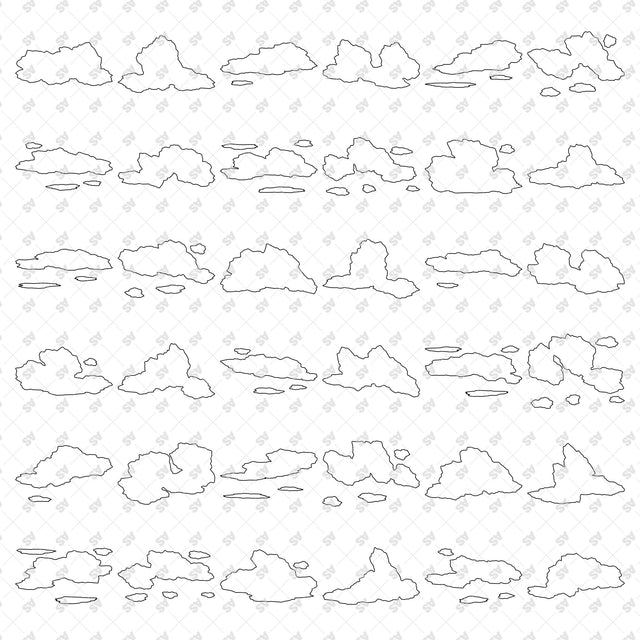
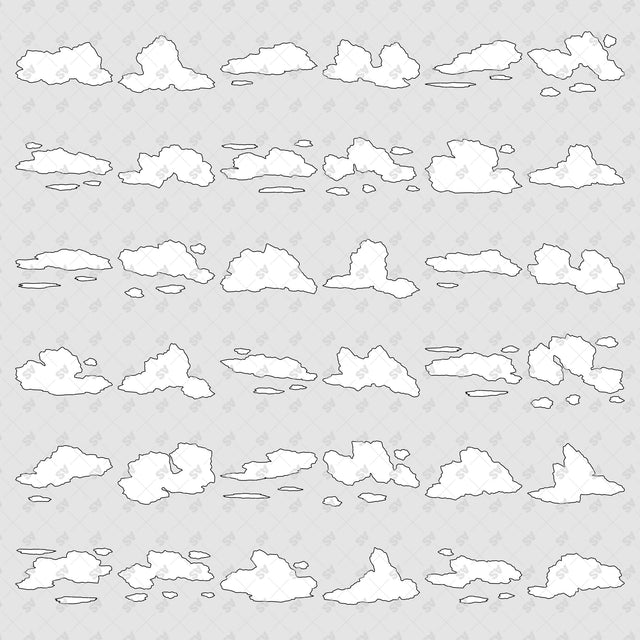
Description: 36 cloud silhouettes with varied irregular outlines, from broad banks and rising crowns to wisps and scattered clusters.
Designed for architects, landscape designers and students creating architectural elevations, sections and collages.
Included Elements: 36 individually grouped formations, including layered cumulus, horizon banks, wind ribbons, rolling clouds and clusters with detached parts.
Use Cases: Elevations, sections, landscape drawings, competition boards and architectural collages.
Why This Set:
Editable CAD blocks and separate SVG groups
Transparent PNGs
Varied silhouettes for different sky compositions
File Format: DXF, SVG and 36 transparent PNG files at 300 dpi.
Free Products
Free products can be used in any type of use - both academic and commercial. When using a set, a pack or part of it, you are required to give full credit to Studio Alternativi (with an active link for online versions) and to the product's creator.
When a product is used in a project that is published on social media, you are required to give full credit to Studio Alternativi (with an active tag to Studio Alternativi’s profile).
Educational (Academic) Use
When using a product tagged with “Educational Use” you are allowed to use it for academic purposes only. Giving credit to Studio Alternativi is much appreciated.
Commercial Use
Once bought, you are free to use the product without giving attribution.
What is strictly not allowed to do (in all cases)?
Products can’t be sold without being part of a bigger artwork like a drawing, collage, rendering, poster or any other work combining Studio Alternativi’s digital products with other graphic or digital elements.
Also, you are not allowed to use products from Studio Alternativi in similar or any competing services.
RAR / ZIP Folders
Please use WINRAR - a free software to open the compressed folder.
AI Vector Files
Please use Adobe Illustrator to open the files
ABR (Photoshop Brushes)
1. Open Adobe Photoshop
2. Open the Brushes Panel: Window > Brushes
3. Select Import Brushes
4. Locate the .abr file on your hard drive and click open to install
5. The brushes will appear in your Brushes Panel whenever the Brush Tool is selected