





Illustrator Pattern Library - Wall Section Pattern Library
Architectural Wall Section Hatches
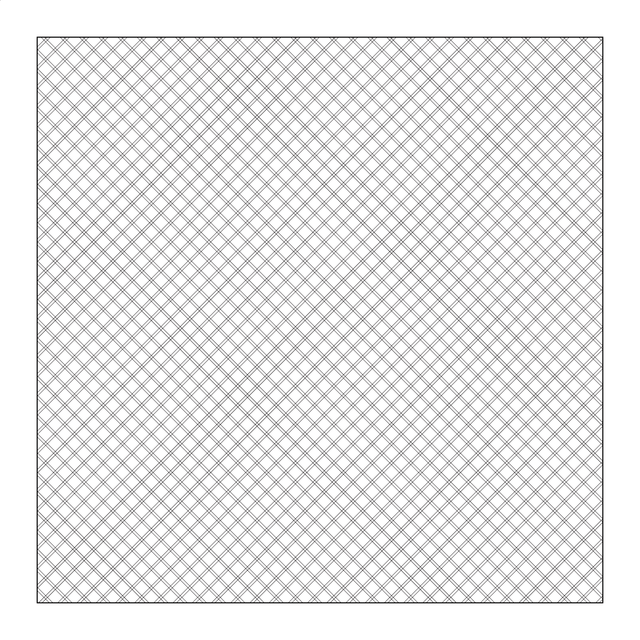
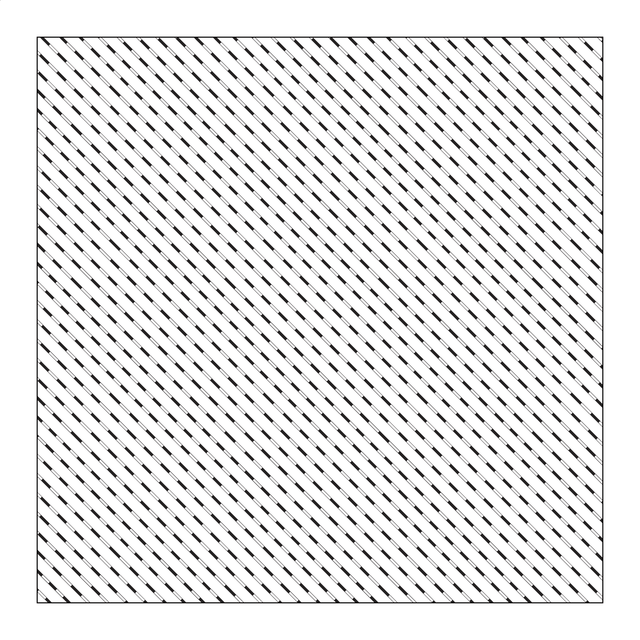
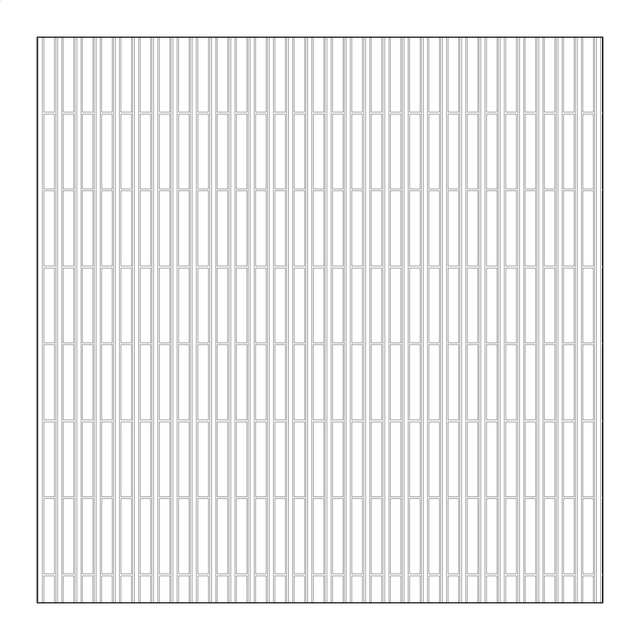
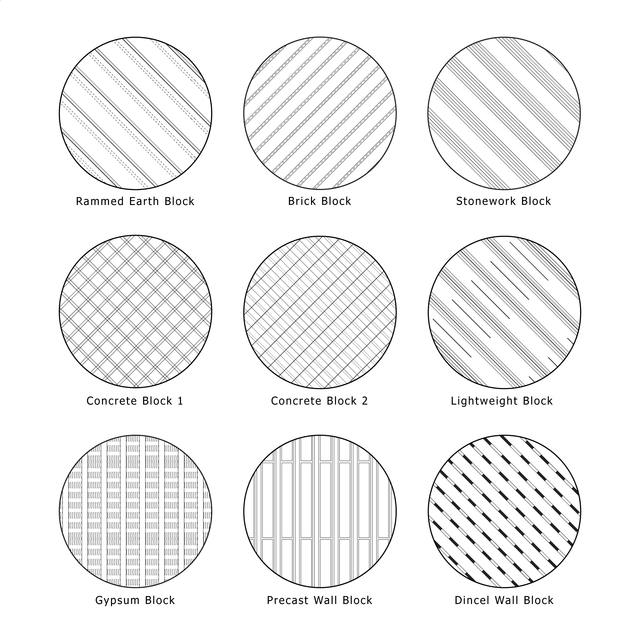
This Adobe Illustrator pattern library includes 9 editable vector wall-section hatches for architectural drawings. The patterns represent common building materials and wall construction systems used in sections, plans, elevations, details, diagrams, axonometric drawings and isometric drawings.
Included Patterns: Rammed Earth Block, Brick Block, Stonework Block, Concrete Block 1, Concrete Block 2, Lightweight Block, Gypsum Block, Precast Wall Block and Dincel Wall Block.
Ideal For: Architectural sections, wall cross sections, construction details, floor plans, elevations, material diagrams, technical drawings, presentation boards and post-digital collages.
Files Included: Editable Adobe Illustrator AI file + Adobe Illustrator Pattern Swatch Library AI file.
All patterns are vector-based, scalable and editable without losing quality.
Find More Architectural Patterns Here
How to Install
-
Open Adobe Illustrator and go to Window > Swatches.
-
Open the Swatches panel menu.
-
Select Open Swatch Library > Other Library.
-
Choose the downloaded pattern library file and click Open.
-
Select an object and click a pattern swatch to apply it.
How to Resize a Pattern
-
Select the object containing the pattern.
-
Go to Object > Transform > Scale.
-
Check Transform Patterns.
-
Uncheck Transform Objects to resize only the hatch.
-
Enter the desired percentage and click OK.
Free Products
Free products can be used in any type of use - both academic and commercial. When using a set, a pack or part of it, you are required to give full credit to Studio Alternativi (with an active link for online versions) and to the product's creator.
When a product is used in a project that is published on social media, you are required to give full credit to Studio Alternativi (with an active tag to Studio Alternativi’s profile).
Educational (Academic) Use
When using a product tagged with “Educational Use” you are allowed to use it for academic purposes only. Giving credit to Studio Alternativi is much appreciated.
Commercial Use
Once bought, you are free to use the product without giving attribution.
What is strictly not allowed to do (in all cases)?
Products can’t be sold without being part of a bigger artwork like a drawing, collage, rendering, poster or any other work combining Studio Alternativi’s digital products with other graphic or digital elements.
Also, you are not allowed to use products from Studio Alternativi in similar or any competing services.
RAR / ZIP Folders
Please use WINRAR - a free software to open the compressed folder.
AI Vector Files
Please use Adobe Illustrator to open the files
ABR (Photoshop Brushes)
1. Open Adobe Photoshop
2. Open the Brushes Panel: Window > Brushes
3. Select Import Brushes
4. Locate the .abr file on your hard drive and click open to install
5. The brushes will appear in your Brushes Panel whenever the Brush Tool is selected