
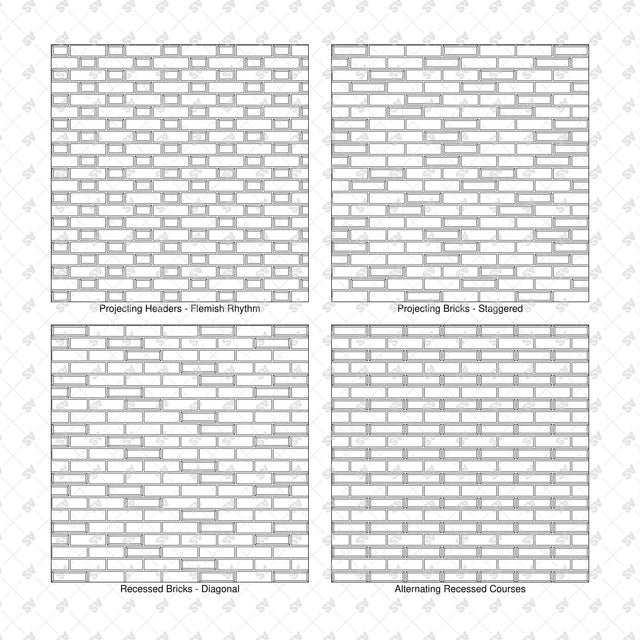

Illustrator Pattern Library - Brick Relief Façade Patterns - 9 Swatches
Description: Set of 9 seamless brick relief façade patterns supplied as an Adobe Illustrator AI swatch library and editable SVG catalogs. Uses black vector outlines and reveal lines to represent projecting bricks, recessed faces, stepped bands and folded-face arrangements without shading or raster textures.
Designed for architects, architecture students, façade designers and architectural illustrators. Compare brick relief concepts in elevation studies, wall-cladding diagrams, architectural collages and presentation boards.
Included Elements: Projecting headers in a Flemish rhythm; staggered projecting bricks; diagonal recessed bricks; alternating recessed courses; projecting bricks in zigzag ribs; expanding recessed motifs; stepped relief bands; sawtooth brick faces; and alternating folded brick faces.
Use Cases: Brick façade concepts, textured wall elevations, feature walls, relief studies, material diagrams, architectural collages and presentation boards.
Why This Set:
- Depth suggested through vector outlines and reveal lines
- Seamless repeats without shading
- A single Illustrator AI pattern swatch library
File Format: Adobe Illustrator .AI pattern swatch library + editable .SVG vector catalogs. Catalog captions are separate editable text objects in Arial. Each pattern sample, border and caption is individually selectable.
How to Install the Library:
- Extract the downloaded ZIP and keep the Swatch_Library.ai file in a permanent folder.
- In Adobe Illustrator, open Window > Swatches.
- Open the Swatches panel menu and choose Open Swatch Library > Other Library.
- Select Brick_Relief_Facades_09_Swatch_Library.ai and click Open. The patterns appear in a separate library panel.
- Select a shape, activate its Fill, then click a pattern swatch to apply it.
Free Products
Free products can be used in any type of use - both academic and commercial. When using a set, a pack or part of it, you are required to give full credit to Studio Alternativi (with an active link for online versions) and to the product's creator.
When a product is used in a project that is published on social media, you are required to give full credit to Studio Alternativi (with an active tag to Studio Alternativi’s profile).
Educational (Academic) Use
When using a product tagged with “Educational Use” you are allowed to use it for academic purposes only. Giving credit to Studio Alternativi is much appreciated.
Commercial Use
Once bought, you are free to use the product without giving attribution.
What is strictly not allowed to do (in all cases)?
Products can’t be sold without being part of a bigger artwork like a drawing, collage, rendering, poster or any other work combining Studio Alternativi’s digital products with other graphic or digital elements.
Also, you are not allowed to use products from Studio Alternativi in similar or any competing services.
RAR / ZIP Folders
Please use WINRAR - a free software to open the compressed folder.
AI Vector Files
Please use Adobe Illustrator to open the files
ABR (Photoshop Brushes)
1. Open Adobe Photoshop
2. Open the Brushes Panel: Window > Brushes
3. Select Import Brushes
4. Locate the .abr file on your hard drive and click open to install
5. The brushes will appear in your Brushes Panel whenever the Brush Tool is selected